Asana acquires StackAI — now every human-agent workflow runs in one place.Learn more
Daily planner template
Use a free digital daily planner template to organize tasks, priorities, deadlines, and time blocks. Templates give you a practical way to plan your day, adjust when priorities change, and track what still needs attention.
Create your templateSign up to create your own template.
INTEGRATED FEATURES
Recommended apps


![[Product ui] Dave's Daily planner project template in Asana (list view)](https://assets.asana.biz/transform/5846c07c-0f39-454c-9248-c2d52dd1b75c/TG23-web-hero-001-daily-planner3-static-2x-en?io=transform:fill,width:2560&format=webp)
Summary
Planning out your day doesn't just mean jotting down your upcoming to-dos. A truly organized daily schedule should include your tasks, along with their priorities, statuses, due dates, and other relevant details. That's why a digital daily planner template can make all the difference.
In this article, you'll learn what a daily planner is, explore the types of templates available, discover the benefits of using a digital planner, and get step-by-step guidance on creating one that fits the way you work.
What is a daily planner?
A daily planner is a tool that helps you organize all the tasks you need to complete each day. It gives you a high-level view of your schedule so you can prioritize work, track progress, and keep tasks from falling through the cracks. From team meetings to quick to-dos, a daily planner keeps everything in one place.
What is a daily planner template?
A daily planner template (also known as a daily schedule template) is a reusable layout for organizing your daily tasks. Because digital templates are editable and shareable, you can start every day quickly without missing a to-do.
Create a daily planner templateTypes of daily planner templates
Not all daily planners are created equal. Depending on how you structure your day, you may prefer one type of template over another.
Hourly daily planner templates
An hourly daily planner template breaks your day into time slots, giving you a detailed view of how you'll spend each hour. This format works well if you need to see exactly where your time is going. It's ideal for:
Back-to-back meeting schedules
Client call management
Deep-focus work sessions that require dedicated time blocks
Task-based daily planner templates
A task-based daily planner template focuses on what you need to accomplish rather than when. You list your to-dos for the day and tag them with priority, effort, or status so you can tackle the most important work first. This format works well if your schedule is flexible and you want to focus on checking off tasks rather than sticking to a rigid timeline.
Read: Use this free daily checklist template to get more doneDaily planner templates for work
A work-focused daily planner template is designed with professional tasks in mind. It includes sections for meetings, action items, follow-ups, and collaboration notes so you can keep your workday organized and aligned with your team. When you create this type of template in a project management tool, you can also connect daily tasks to larger goals.
Benefits of using a digital daily planner template
You've probably used a physical daily planner before. While they might be aesthetically pleasing, physical planners have real limitations: they lack space, aren't customizable, and don't let you attach context to your tasks. That's where digital daily planner templates come in.
Digital templates are customizable, so you can organize them to match how you work best. Want a minimalist daily calendar? Easy. Prefer an hourly breakdown? No problem. When you create a digital daily planner template in a project management tool (instead of using a printable daily planner template), you can:
Keep track of all your tasks in one place
Track the priority of each task
Easily arrange (and re-arrange) your to-do list by task priority
Connect your daily tasks to larger goals
Streamline time management
Collaborate with team members
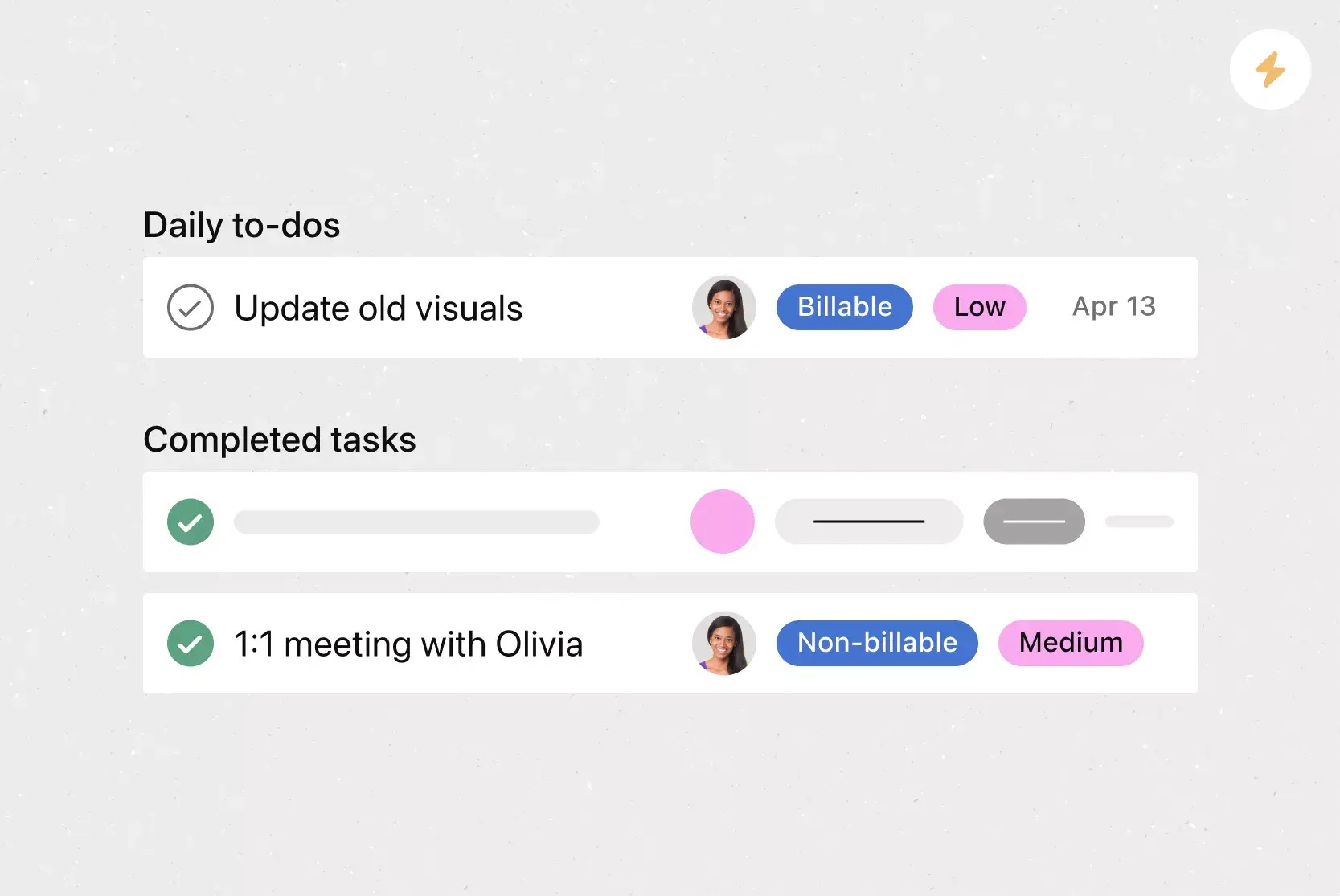
Keep track of your completed tasks
Track your progress
Watch as new tasks are added in real-time
How to create your digital daily planner template
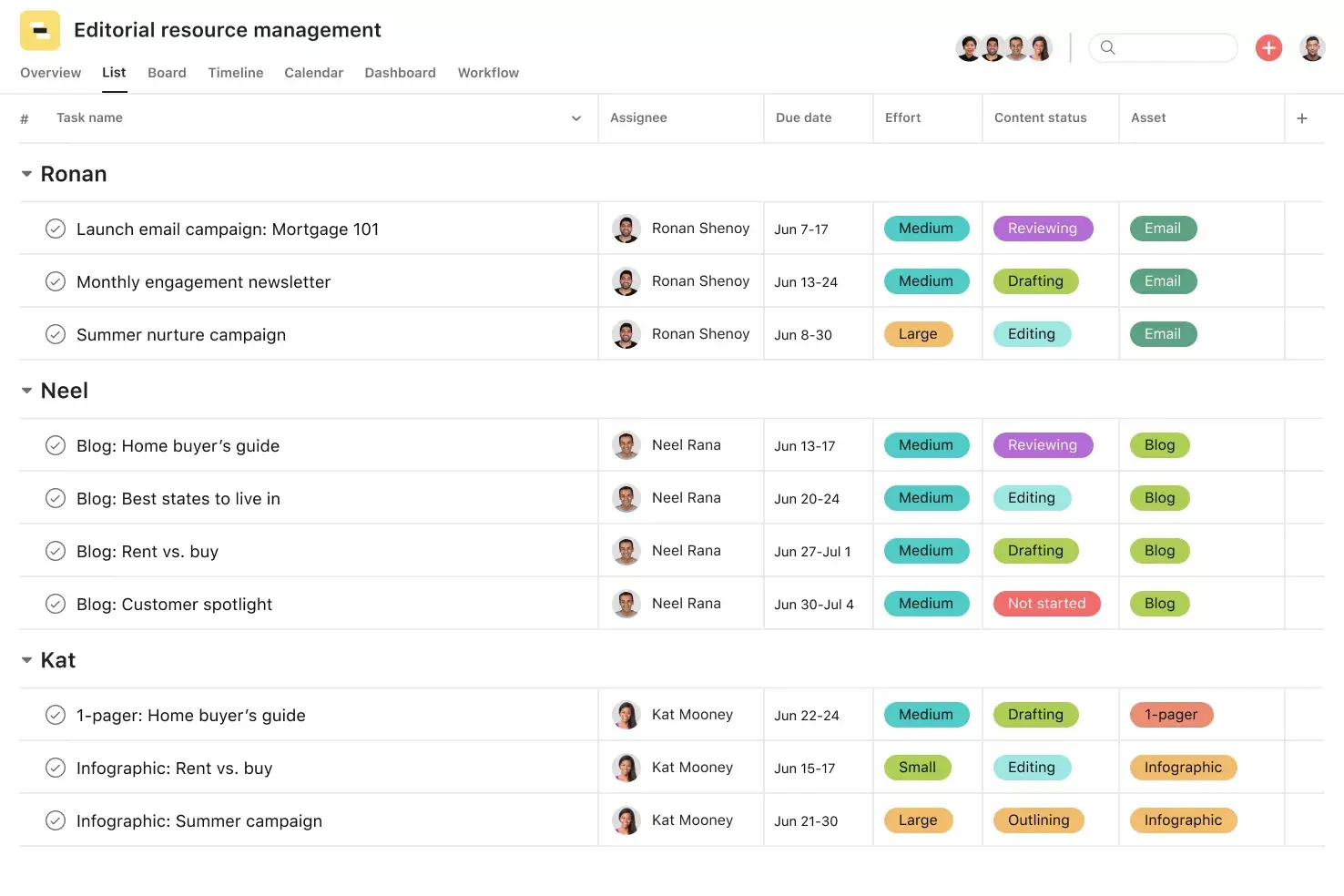
First things first: before you sit down for your daily planning session, make sure your template allows you to customize your schedule in a way that works for you. Look for the ability to tag your tasks with task status, effort, priority, or category. These details make it easier to plan out your day once you start adding to your task list.
Read: Free schedule template for daily, weekly, or monthly useWhat to include in your daily planner template
How you structure your template depends on how you work best. Start by adding your to-dos for the day, like meetings, follow-ups, and action items. Then tag each task with the details you need to stay organized:
Priority: Flag tasks as high, medium, or low urgency
Due date: Set a clear deadline for each to-do
Category: Group tasks by project, type, or team
Effort: Estimate how much time or energy a task requires
Status: Track whether a task is not started, in progress, or complete
How to arrange your daily planner template
Once you've added and tagged your daily tasks, sort them with custom fields to match your working style. Whether you like to knock out small tasks first or prioritize high-impact work, arranging your agenda around your preferences keeps you focused and productive.
Here are a few ways to arrange your daily planner template:
Task type or category: Group similar tasks together so you can work on them in batches
Time block: Assign tasks to specific windows in your day for focused work sessions
Task priority: Sort by urgency so you always tackle the most important work first
Tips for using your virtual daily planner template
Printable daily planners, worksheets, and sticky note to-do lists are a thing of the past. Digital daily planners allow you to customize your workflow and access your schedule from anywhere. And, unlike with physical planners, there's no risk of misplacing a virtual one.
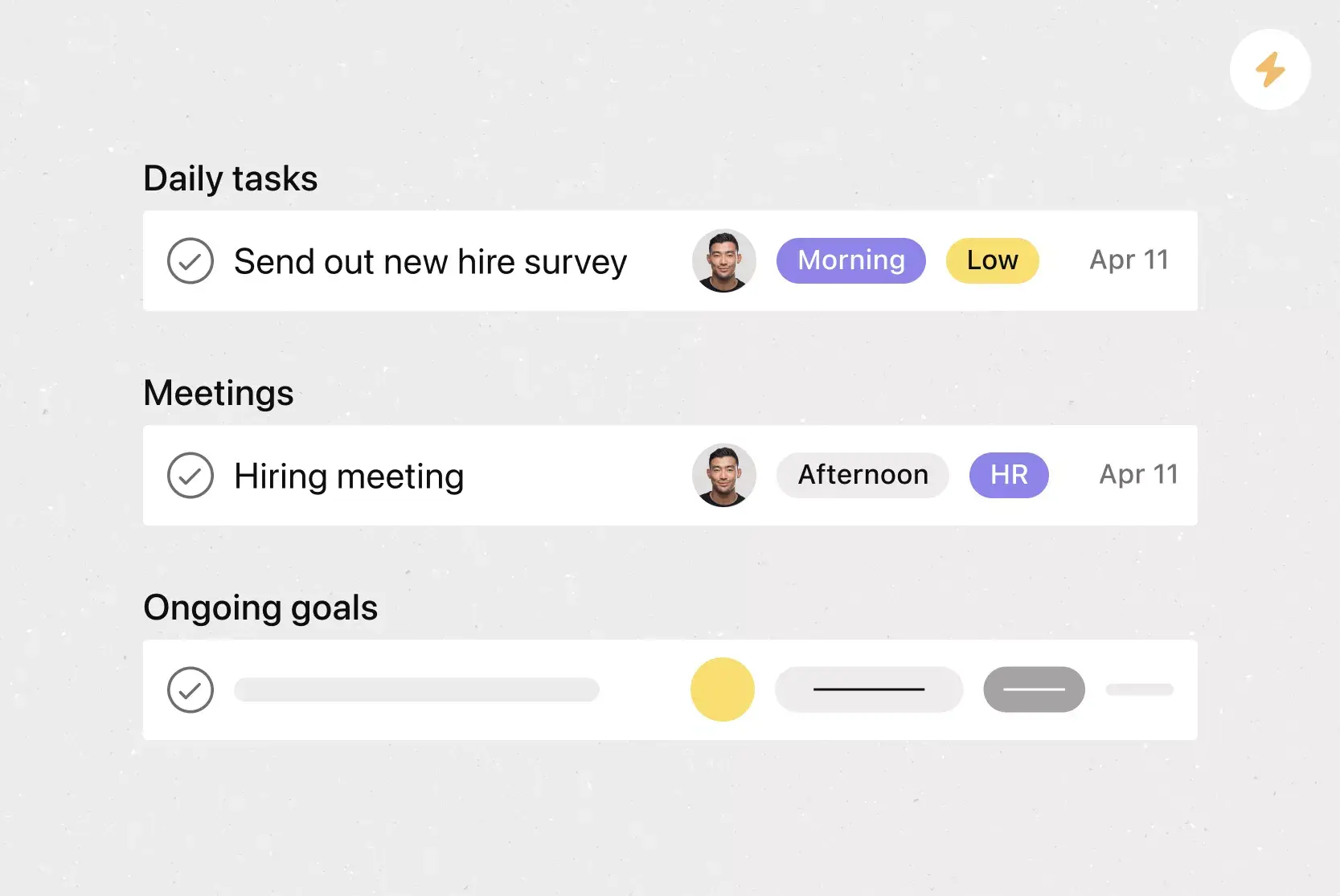
![[Product ui] daily planner template image in Asana (list view)](https://assets.asana.biz/transform/08682684-3334-48bf-96b5-921b31305c68/TG23-web-hero-001-daily-planner1-static-2x-en?io=transform:fill,width:2560&format=webp)
Here are a few tips and tricks for organizing your work using your digital daily planner:
Be clear and specific
Make your tasks actionable and deadline-driven
Sort your work flexibly based on what matters most
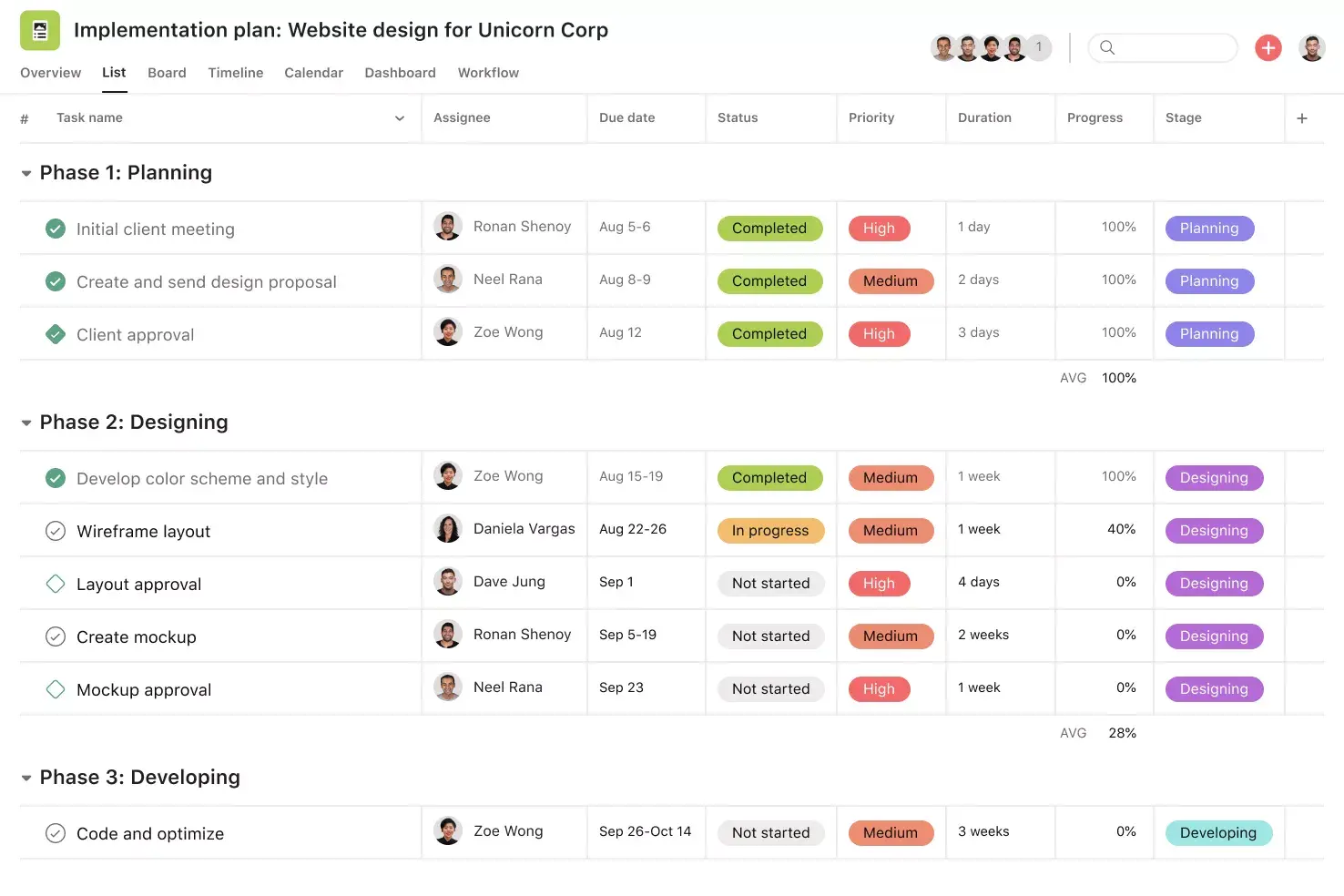
Use a list template view to see your upcoming tasks at a high level
Set recurring tasks to automate your workflow
Color-code tasks and tag tasks for clarity
Connect your favorite apps for streamlined work
Organize your tasks into sections
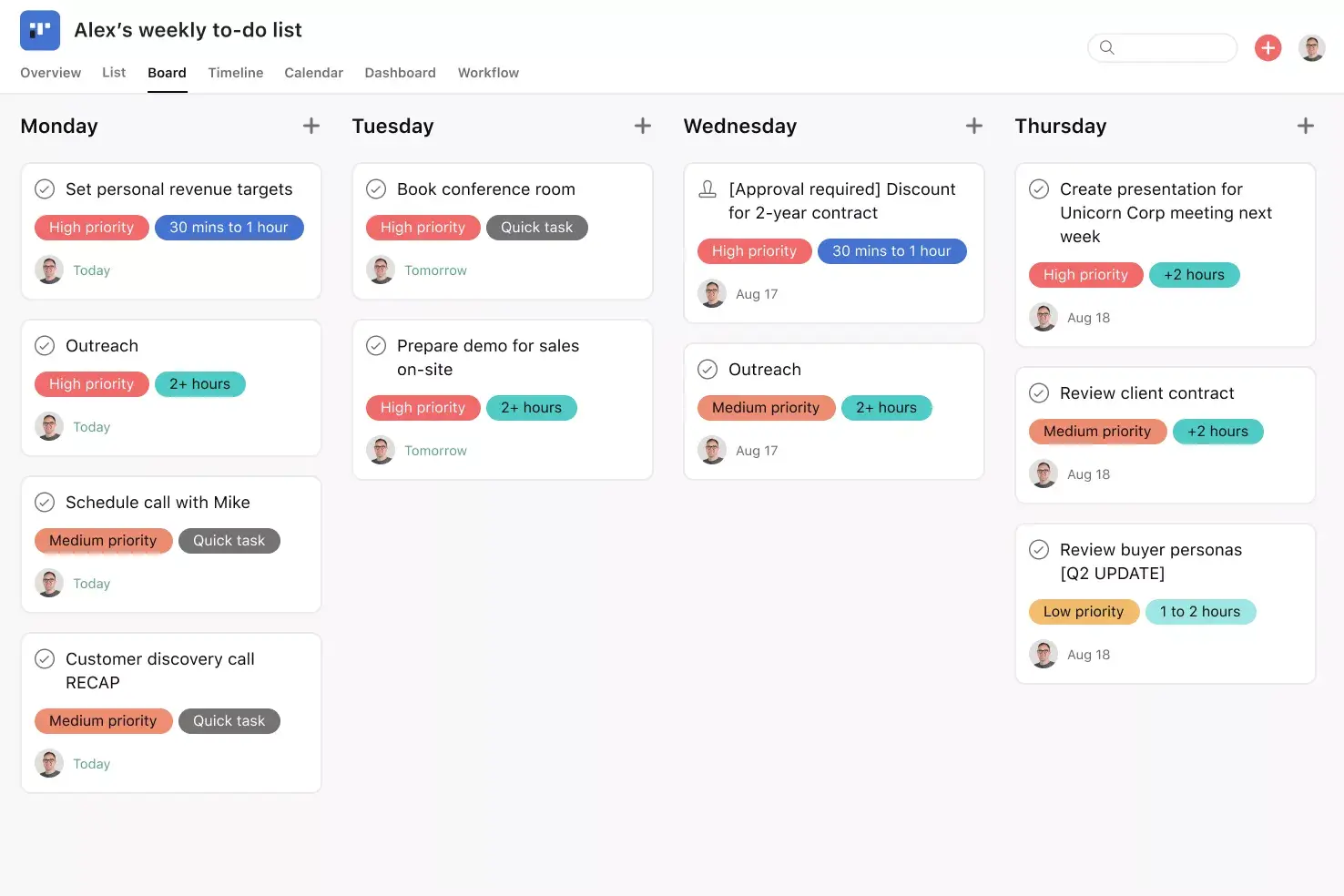
Visualize your daily schedule in a grid, such as a Kanban board
Keep everything in one place by attaching docs or images to your tasks
Add team members for visibility
Get organized with Asana
A daily planner template is only as powerful as the tool it lives in. When you build your daily planner in Asana, you get features and integrations that turn a simple to-do list into a connected system for managing your day and collaborating with your team.
Integrated features
Custom fields. Custom fields are the best way to tag, sort, and filter work. Create unique custom fields for any information you need to track, from priority and status to email or phone number. Use custom fields to sort and schedule your to-dos so you know what to work on first.
Start dates. Sometimes you don't just need to track when a to-do is due; you also need to know when you should start working on it. Start times and dates give your team members a clear sense of how long each task should take to complete. Use start dates to set, track, and manage work to align your team's goals and prevent dependencies from falling through the cracks.
My Tasks. My Tasks is a personalized view that shows you every task assigned to you, regardless of which project or team it belongs to. By visualizing all of your to-dos in one place, you can sort and prioritize work and ensure nothing falls through the cracks. With My Tasks, you can toggle between list, board, and calendar views to work the way you want.
Automation. Automate manual work so your team spends less time on busywork and more time on the tasks you hired them for. Rules in Asana operate on a trigger-and-action model: "when X happens, do Y." Use Rules to automatically assign work, adjust due dates, set custom fields, notify stakeholders, and more.
Recommended apps
Google Workplace. Attach files directly to tasks in Asana using the Google Workplace file chooser built into the Asana task pane. Easily attach any My Drive file with just a few clicks.
Gmail. With the Asana for Gmail integration, you can create Asana tasks directly from your Gmail inbox. Any tasks you create from Gmail will automatically include the context from your email, so you never miss a beat. Need to refer to an Asana task while composing an email? Use the Asana for Gmail add-on to search for that task directly from your Gmail inbox.
Zoom. The Zoom + Asana integration makes it easy to prepare for meetings, have actionable conversations, and access information after the call. During the meeting, team members can quickly create tasks within Zoom, so details and action items don't get lost. Once the meeting is over, the integration pulls transcripts and recordings into Asana for all collaborators to review.
Clockwise. With the Clockwise + Asana integration, you can add Asana tasks as time blocks in your Google Calendar. Specify the duration of tasks, when they happen, and whether Clockwise can automatically reschedule them.
Ready to plan your day with more clarity and less effort? Get started with a free digital daily planner template in Asana and see how easy it is to organize your tasks, collaborate with your team, and stay on top of what matters most.
Create a daily planner templateFAQs about daily planner templates
Do I need a digital daily planner template?
How do you use a daily planner template?
What is the purpose of a digital daily planner template?
Can I use my daily planner template for tracking personal goals?
How do I choose a daily planner template?
What's the difference between a daily schedule template and a weekly schedule template?
Related templates
![[Template] IT project plan (Card image)](https://assets.asana.biz/transform/8aa523a9-4dcb-4053-8e69-7bdf900b48b9/web-product-template-thumbnail-IT-EN-US?io=transform:fill,width:2560&format=webp)

![[Templates] Operations Project Plan (Card)](https://assets.asana.biz/transform/ec3bf1b9-cbcd-413c-a20c-82bf1dbe10d2/TG23-web-thumbnail-008-risk-management?io=transform:fill,width:2560&format=webp)
![[Templates] RFP Process (Card image)](https://assets.asana.biz/transform/14aa111b-ab22-483f-bfd1-3090acb7d2a5/RFP-process-premium-m?io=transform:fill,width:2560&format=webp)


![[HR Project Plan] template Card Image](https://assets.asana.biz/transform/663b8e5e-89c9-4b0b-b48b-1b17e01d1889/TG23-web-thumbnail-033-process-improvement-static-2x?io=transform:fill,width:2560&format=webp)
![[Templates] Waterfall project management (card image)](https://assets.asana.biz/transform/d87fc21c-53f0-4bc9-9094-9789b963be9b/article-project-management-waterfall-project-management-methodology-2x?io=transform:fill,width:2560&format=webp)
![[Templates] Marketing Project Plan (Card) image](https://assets.asana.biz/transform/af70ac54-97b9-4639-b639-be3a3d951e3e/TG23-web-thumbnail-016-stakeholderregister-static-2x?io=transform:fill,width:2560&format=webp)
![[Templates] Status report (card image)](https://assets.asana.biz/transform/9c82d399-782b-40d3-9eb1-fd7544bef794/article-project-management-project-management-maturity-model-2x?io=transform:fill,width:2560&format=webp)
![[Templates] Event Marketing Plan (Card image)](https://assets.asana.biz/transform/6c7b9329-b612-4732-910a-7917fa079f0b/TG23-web-thumbnail-014-project-chart-static-2x?io=transform:fill,width:2560&format=webp)

![[Templates] Communication plan (card image)](https://assets.asana.biz/transform/3dc9eadf-9d2d-40a2-a05d-63adb32a1de7/article-collaboration-synchronous-vs-asynchronous-communication-2x?io=transform:fill,width:2560&format=webp)

![[Templates] Design Project Plan (Card image)](https://assets.asana.biz/transform/c768a28c-822f-420f-93f9-f2eea4c93780/TG23-web-thumbnail-032-bill-of-materials-static-2x?io=transform:fill,width:2560&format=webp)
Create templates with Asana
Learn how to create a customizable template in Asana. Get started today.