Asana acquires StackAI — now every human-agent workflow runs in one place.Learn more
Project chart template
Get a reusable blueprint to plan, track, and deliver projects. Map tasks to timelines, set dependencies, and keep your whole team on track from kickoff to delivery.
Create your templateSign up to create your own template.
INTEGRATED FEATURES
Recommended apps


![[Product ui] Project chart in Asana (Timeline)](https://assets.asana.biz/transform/0d1af6b7-949d-444d-b531-2f32c4284cc6/TG23-web-hero-014-project-chart-static-2x?io=transform:fill,width:2560&format=webp)
Summary
Starting a new project can feel overwhelming, even for seasoned project managers. Goals, budgets, milestones, and communication plans must come together before work begins. A project chart template gives you a ready-made blueprint so you don't have to start from scratch every time. With the right template, you can standardize your planning process and reduce the risk of missing critical steps.
What is a project chart?
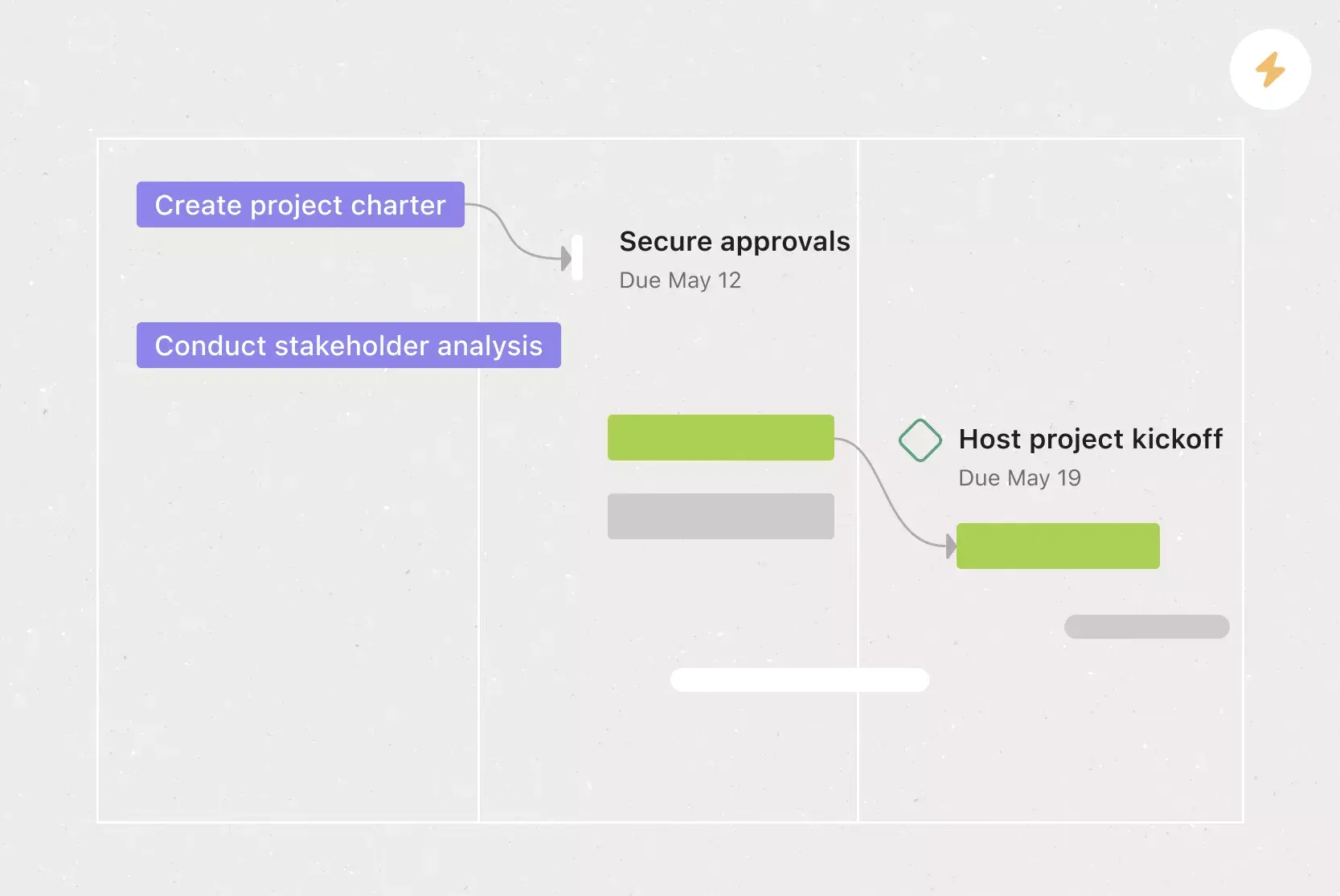
A project chart is a visual representation of your project plan that maps every deliverable to a project timeline. Also called Gantt charts, project charts are typically formatted as horizontal bar graphs. Project charts use task bars to display the start dates and deadlines for each deliverable. Connecting lines visualize task dependencies, and the chart can also display milestones and task owners.
What is a project chart template?
A project chart template (or Gantt chart template) is a reusable guide that lets you quickly set up a project chart for any new initiative. It provides a blueprint for all the steps you need to plan, execute, and deliver your project. Instead of building a chart from scratch, you plug in the specifics for your current initiative. The template handles the structure, so your team can focus on the work itself.
The benefits of a digital project chart template
Static Excel spreadsheets can't keep up with the pace of modern project management. A digital project chart template dynamically updates as your team completes tasks, giving everyone real-time visibility into progress. With project management software, your project plan and project chart live in the same place. That means less time updating documentation and more time working toward your project goals.
When you create a project chart template in a project management tool, you can:
Centralize project information: Visualize your project plan and store all details in one place.
Adapt to changes: Rearrange your chart and update due dates if priorities shift.
Track progress in real time: See how your project is moving forward without waiting for status updates.
Share with stakeholders: Give stakeholders instant access to schedules, statuses, and deliverables.
Eliminate duplicate work: Your project chart doubles as a project plan, so you only maintain one document.
Collaborate where you track: Work on project deliverables in the same place you monitor them.
Cover every step: Ensure you don't miss any key project tasks.
Attach supporting files: Add relevant documents, images, or spreadsheets directly to tasks.
![[Product UI] Campaign management project example (Timeline)](https://assets.asana.biz/transform/936a6392-5a50-48ed-90b9-d7625b6218bc/inline-timeline-view-campaign-management-2x?io=transform:fill,width:2560&format=webp)
What to include in your project chart template
An effective project chart template is easy to navigate and provides enough context for stakeholders to understand the full picture. Ideally, stakeholders should be able to click into each task for detailed information, making the chart a single source of truth for your project.
Here's what to build into your template:
Sections for each project phase: Organize your template by project initiation, planning, execution, performance, and project closure. This gives stakeholders an at-a-glance view of what stage your project is in.
Pre-filled standard tasks: Include key steps every project should take, like creating a project brief and defining project goals. Leave room for additional deliverables that are specific to each initiative.
Task dependencies: Build dependencies into your template to schedule tasks in the right order. This helps you avoid bottlenecks and ensures your team has what they need to start each assignment.
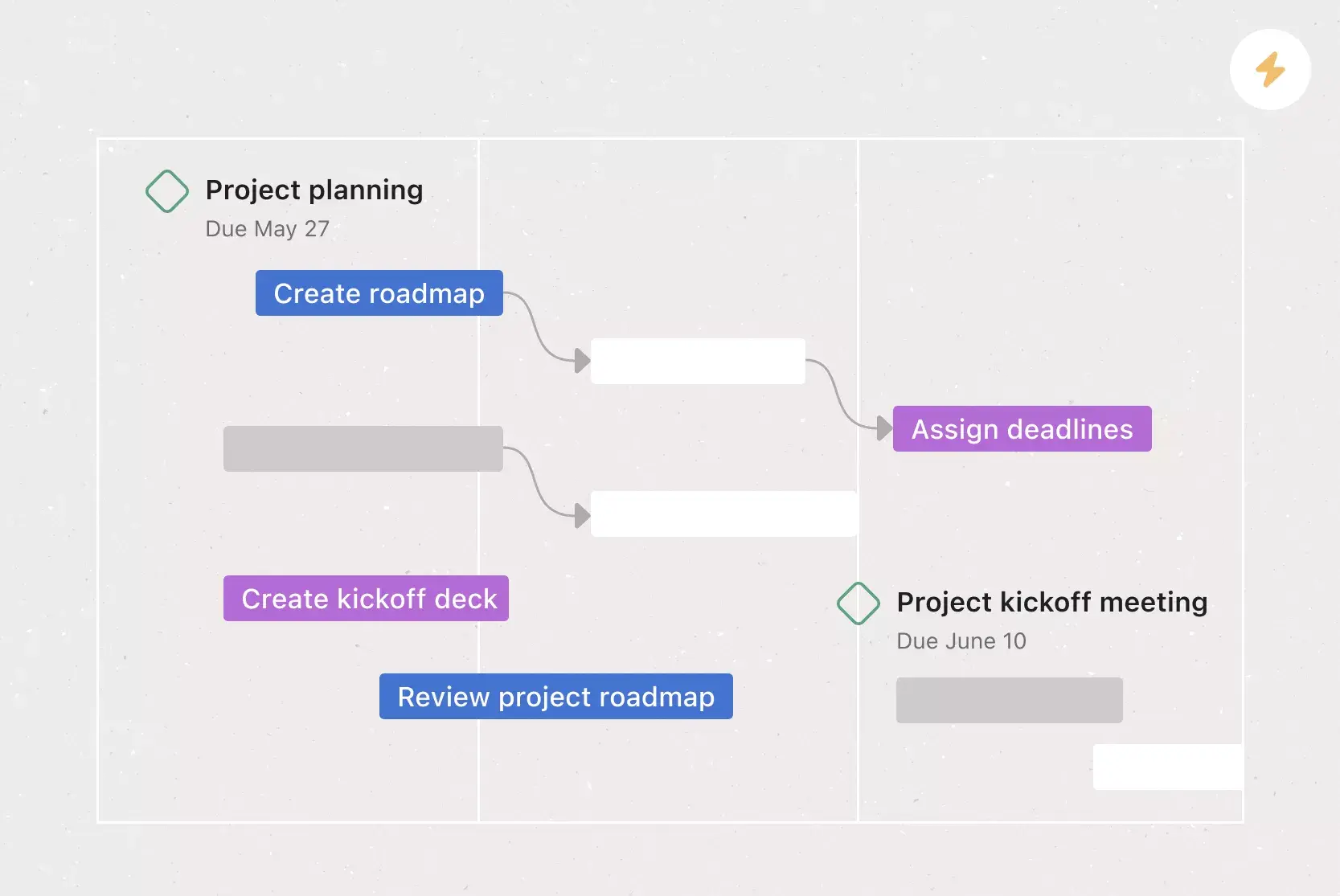
Milestones for key moments: Mark checkpoints like project kickoff meetings or launch dates. Milestones help your team track when phases are completed and when new activities begin.
![[Product UI] Event management project example (Timeline)](https://assets.asana.biz/transform/3484e5c3-302a-4cbe-b1a6-95892026b0ee/inline-timeline-view-event-management-2x?io=transform:fill,width:2560&format=webp)
Integrated Features
Timeline View. A Gantt-style view that displays all tasks in a horizontal bar chart. You can see start and end dates, task dependencies, and identify conflicts before they cause delays.
Dependencies. Mark tasks as waiting on other tasks so your team knows the correct order of operations. When a predecessor task is completed, the next assignee is automatically notified.
Milestones. Set important project checkpoints to track progress. Milestones help your team and stakeholders see how you're pacing toward your goal.
Custom fields. Tag, sort, and filter work by any criteria you need, from priority and status to custom categories. Share custom fields across projects to ensure consistency.
Recommended Apps
Google Workspace. Attach files directly to tasks in Asana with the built-in Google Workspace file chooser.
Dropbox. Attach files directly to tasks using the built-in Dropbox file chooser.
HubSpot. Create Asana tasks automatically using HubSpot Workflows to hand off work between teams when deals or tickets close.
Lucidchart. Embed diagrams, flowcharts, and wireframes directly into your Asana project so teams can access visual context without switching applications.
How to create a project chart template
Building a project chart template is straightforward. Follow these steps to create a reusable template that standardizes your team's planning process.
Define your standard project phases: Outline the phases every project follows, such as initiation, planning, execution, and closure. These form the backbone of your template.
List recurring tasks for each phase: Identify tasks that repeat across projects, like creating a brief, conducting a kickoff, or completing a final review.
Set up task dependencies: Connect tasks that rely on one another so your team works in the right sequence.
Add milestones and checkpoints: Mark key moments such as approval gates or launch dates so your team has clear targets.
Leave room for customization: Build flexibility into your template so team members can add deliverables, adjust timelines, and assign owners for each initiative.
Once your template is ready, save it in your project management tool so anyone on your team can duplicate it and get started quickly.
Get started with a free project chart template
A project chart template takes the guesswork out of project planning. Instead of building from scratch, your team follows a proven structure that covers every phase from kickoff to delivery. Asana's free project chart template gives you a dynamic, collaborative starting point for any initiative.
Get started with Asana today.
FAQs about project chart templates
Do I Need a Project Chart Template?
What Should I Include in My Project Chart Template?
How Do I Use a Project Chart Template?
What's the Difference Between a Project Chart and a Gantt Chart?
Can You Create a Project Chart with AI?
Related templates

![[Templates] Cross Functional Project Plan (Card image)](https://assets.asana.biz/transform/60887a05-0b92-49c2-a6e7-f1ace41c5596/TG23-web-thumbnail-041-editorial-resource-management-static-2x?io=transform:fill,width:2560&format=webp)
![[Company Goals and Milestones] template Card Image](https://assets.asana.biz/transform/89ea0a9f-3166-4cf1-bbe3-a2067fead0f5/TG23-web-thumbnail-038-optimization-project-goals-static-2x?io=transform:fill,width:2560&format=webp)
![[Templates] Event planning (Card image)](https://assets.asana.biz/transform/78e1727d-905a-4ee5-baa6-9dd141f5a3c6/Template_EventPlan_Thumb?io=transform:fill,width:2560&format=webp)
![[Templates] Request tracking workflow template (card image)](https://assets.asana.biz/transform/c871372a-ce51-44f4-b586-0f6da7063706/Template_RequestTrack_Thumb?io=transform:fill,width:2560&format=webp)
Create templates with Asana
Learn how to create a customizable template in Asana. Get started today.